Monday, June 07, 2010

How to - place a hit counter on a Blogger or BlogSpot blog

Blogger and BlogSpot are the same thing, a user-friendly blogging platform owned and operated by Google. They recently underwent an upgrade that has seen the introduction of a common interface, so these instructions should work for all users (I hope!).

I did hope there was a counter already set up as a gadget, but there wasn't. I certainly couldn't find it by searching the gadgets for "counter" anyway. So let's just use another gadget - the "HTML/Javascript" one, instead.

First up, though, we need some counter code. You can usually get this from any virtual server hosting company but if you don't have one of those handy there are plenty of options on the web. Beware though as the top 2 on a Google Search for "counter code free" were marked as suspected spammers/crackers or just plain infected sites. You don't want bad code infecting your blog, so respect those warnings if you see 'em.

Anyway I found what appears to be a reputable site and I have tested it out. So far, so good. It offers lots of variations on the hit counter theme and I just chose "whatever" to see if it worked. It did.


Yes, it would work better against a white background but hey, it works ;-)

I got it from Website Hit Counters in the form of a snippet of code. My selected code generates a counter that looks just like this (please don't view source and copy my code, it's specific to my site and won't work for you!!):


web counter


All I had to do was copy and paste that code into the standard HTML/Javascript gadget supplied by Blogger.


So the steps are:

  1. Go to a reputable hit counter maker. If you go to Website Hit Counters they'll ask you to select a style (choose wisely, unlike me). You'll also have to supply a starting count (like zero or something higher if you like) and an email address. They'll email you with stats if you like. There's no other charge
  2. Copy the code that is generated
  3. Go to Blogger and log into your account
  4. Select your blog on your Blogger dashboard
  5. Choose "Design". You'll be presented with "add or arrange page elements" and an overview of your blog design. 
  6. Depending upon the layout of your blog (something you can also change if you like) somewhere on that design will be an option to "add a gadget". Preferably find that option in a good spot - the bottom of your page for example - and click on it
  7. A gadget list will come up - just scroll down to "HTML/Javascript" and click on the "plus" or addition sign to add that gadget
  8. The gadget wants a name but you can ignore that - leave it blank - and just paste your code into the large empty box, then click "save"
  9. It will then save the code on the page! Just click on "view blog" and scroll down to the page bottom (or wherever you chose to put it). Your counter should now be visible.    
  Hope that works for you, too.  

I can help you set up a blog or simple website

Yes, it's easy - very easy. But isn't everything easy once you know how? 

In fact it can look daunting. There are so many options: host locally, or globally? Use Blogger or WordPress? Windows or Unix? US or Aussie domain? A subdomain? What about support? How do I update it? First up I can provide an initial consultation and work with you to refine what you want - and what you really need. My standard $50/hour rate applies for such new consultations - but if you already know what you want - a simple, effective blog or website on a standard platform - then we can skip the deep analysis. 

So if you do want to set up a blog or simple website and just want some help, I can assist with setting it up at my standard rate of $50/hour (or less for repeat business). That's to say that I'll work with you on theme choice, overall design, navigation and basic "how-to" instruction, including FTP if needed. If you have monetisation already (Google AdSense for example) or want to set that up I'll help with that as well. I'll also cap this standard setup at $300 - if your single domain, single blog - using either WordPress or Blogger, with standard themes - or 5 page web site with a standard template theme (from my stock or yours), basic navigation and up to 5 images isn't up and running for that price then I'll keep working on it until it is - no extra charge. To do this and not go broke I have to add just 2 catches...

Catch number 1 - whilst I'll always give you plenty of options and choices they will be on platforms and using tools that I use regularly, already have access to or are freely available. (Which is to say that at this price I'm not going to buy extra hardware or additional software to meet your specific requirements - however I'm happy to quote on such extras!) My blogging platforms of choice are WordPress or Blogger and I have deep experience with both. For most purposes I recommend Blogger but for deeper customisation WordPress will usually give a better result. (It will also take more time to learn on your part, however.) Use either and it'll go smoothly.

Catch number 2 - for this one-off set up fee I don't provide hosting. But this is actually not a problem for most bloggers or simple web sites. You can get basic hosting free or at little cost; or you can source it yourself. If you accept basic hosting on Blogger or a free or near-free web host (WordPress also comes free in some cases) I'll help you with uploading and customisation how-to until the site works as intended. We decide together at the beginning what 'working as intended' means, so that's not a confusion later.

If you want more, including ongoing support, I can help at my ongoing $40/hour rate for regular customers. I also offer a hosting plan using US servers, or can help you with an Aussie based server if you wish - both at extra cost. I'll quote on your needs. I can also host your pages on my own shared virtual servers, using domains and sub-domains I own (but again I'll give you options).


And if you do want all of the bells and whistles - something outside of the ordinary, standard templates - again I'll listen to what you want to do and quote.

Still confused? Let's chat about it.

Saturday, June 05, 2010

Stuck with XP for now? Speed it up!

There are many things you can do to speed up outdated but still perfectly functional operating systems like Windows XP. A hardware refresh is one option, including the most obvious thing - simply add more RAM (the 'random access memory' or short-term memory that a computer uses to load and run a program, as distinct from the non-volatile memory that you store your data on). Of course you may already have enough RAM or just don't want to spend a lot of money, so what else can you do?

There are all-in-one utilities like TuneUp that will do this for you, and there are also inbuilt utilities in the operating system that address each function. It's your choice.

  1. First up, remove software you no longer use - These may accumulate over time and soak up space. If you aren't ever going to use it again (and have a copy of the installation disk or files somewhere, just in case) simply remove it. Go to Control Panel --> Add/Remove Software
  2. Clean your system and make some space - Delete unwanted files and old emails you no longer need via Control Panel --> Internet Options -> Delete Files (always look carefully at what's being deleted just in case but most downloads and old cached files can go)  
  3. Get rid of old cookies. These are hidden Internet browser files that may contain helpful setup information for individual web sites, so be careful - zap only the ones you are sure about. Control Panel --> Internet Options --> Settings --> View Files --> Check and delete the cookies you don't need
  4. Cleanup all other temporary files and empty the recycle bin: go 'start\programs\accessories\system tools\disk cleanup'. That will make some space. Temp files are meant to be, umm, temporary! (Just don't zap things you need.)!
  5. Defragment your hard drive (the non-volatile data storage) Hard drives do a good job of writing and rewriting your data but over time things that should be close together and quicker to get to get stored apart. This restores logic to the filing system. Use the XP tool: 'start\programs\accessories\system tools\disk defragmenter' 
  6. Clean your registry. Not such an easy one and best left for a professional, the experienced or the brave. You can also download a utility to do this. Errors accumulate over time and the registry gets cluttered
  7. Backup unused fonts. These collect over time and can become quite massive if you have loaded many programs. Whatever you do keep the ones you need, especially the "XP Fonts". Back unwanted fonts onto a CD or DVD and store them somewhere.
  8. Get rid of any big desktop background graphics files, consider even unchecking the Windows XP theme (ie go back to the 'old style' or classic Windows - it runs faster). Right-click on a blank part of your desktop and click on 'properties'.
  9. Uncheck all of the system-hogging effects that look cool but slow you down. Look in Control Panel --> System --> Advanced tab --> Performance tab, click Settings --> Uncheck everything
Of course there are loads more options but above are some of the simplest things to do in order to make things faster and delay a hardware upgrade.

Tuesday, May 25, 2010

Gadgets - an RF modulator and some of the components needed to feed your computer a TV signal


Modulator WiFi DTV_0217
Originally uploaded by gtveloce
Here's a pic of an RF modulator sitting on a PC (middle, left). In fact I use the modulator to get an old TV to work with a set-top-box and DVD player. If - like on this TV - you don't even have a composite (or 'yellow video connector') input then you need an RF modulator to send the video signal from the modern output device to ye olde RF connector instead.

It's not ideal but with some mucking around it does work. You will have to tune the TV to the frequency of whatever you hook up and you may get a distorted picture. Alternatively, upgrade to a newer TV with at least a composite input.

Also in the pic is a set-top-box on a stick (middle right). Well it's an HD Digital TV tuner with USB connection. With that little device I can use the PC as a TV and Personal Video Recorder (PVR). With a new-fangled HDMI connection we can easily hook the PC to a TV, too, and use it as a monitor. Or (as I did) we can use older-style connections to pump the signal out to the TV. You may however have to use an adapter to bridge between PC 'D-shell' and yellow composite TV connectors.

Lastly, that's a WiFi USB 'dongle' right up the back.

Monday, May 24, 2010

Audio/video switch


from PC to TV_0484
Originally uploaded by gtveloce
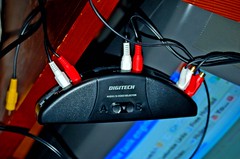
The sort of audio/video switch you can use to switch between 2 devices. The output goes to a 3rd device.

In this example I hooked up the kid's PC to an old composite-only analog TV via a VGA feed (a standard PC video connection) to an analog PVR (or personal video recorder - a box with a hard drive in it).

The sound is sent through a Logitech 5.1 amp/speaker system via a 2-in 1-out switch (pictured) to allow a swap between the DTV-B (digital TV - broadcast) STB's (set top box) audio and the PC audio-out. It works!

That's the audio switch. I could have switched video through it as well but I use the analog PVR to do that and just feed the main stereo audio through here, with the other speakers going direct.

Friday, May 14, 2010

Rob's CC IT Shop is now open

I have partnered with Amazon to bring you a range of quality electronics at decent prices. Bear in mind that some products and/or models are restricted to certain markets and may not be available in Australia, and further that warranties may vary between countries. Note also that $US may be quoted, in which case please ensure you have converted back to your local currency before committing to your purchase. 

Thursday, May 06, 2010

Networking Windows 7 with XP - setting the workgroup name

Here's a tip. Having just updated to Windows 7 I couldn't find where to set my workgroup name (which is the name you set for all computers on your network). Well it's not under Networks in control panel (which is where you might think it should be) but under System instead.

From the Start menu select Control Panel, System; then to the right of "Computer name, domain, and workgroup settings" click Change Settings. You can change your Computer Name here as well, BTW. Click Change settings and the workgroup option (which was greyed out) becomes editable in a dialog box. Set it to whatever workgroup name you use for all your machines (in XP the default was MSHome, I think... in Win7 it's just Workgroup. So it's not going to work out of the box, it just needs some help.)

Tuesday, May 04, 2010

If there's something wrong, please let me know.

I appreciate your business - if there's something amiss in any way please let me know.

Cheers, Rob.

Thanks for your business!

I just wanted to say that I appreciate your business and trust all is well. Let me know if there's anything else I can do to assist - your comments and feedback are always welcome.

Cheers, Rob.

Monday, May 03, 2010

Up and running

The new domain is registered - we are now registered as centralcoastIThelp.com. Not amazingly creative but let me tell you the angst I went through choosing from the available options... not easy.

By the way I registered that domain (as I have done for yonks) via virtualave.net (my web server supplier of choice) and Tucows. May as well own up, if you sign up via that link I'll get a small commission against my web hosting plan. Won't make me rich but helps keep the ship afloat. Same principle applies with any advert you see in this blog.